Customer instructions
How to add the app to your home screen
There's no app store, no download and nothing to sign up for. It takes about fifteen seconds. Follow the iPhone steps or the Android steps below — the photos show exactly what to tap.
iPhone and iPad (Safari)
iOS 16 and newer — use Safari, not Chrome.
- 1
Open the app link in Safari
Tap the link we texted or emailed you, or type the web address into Safari. On iPhone and iPad this has to be Safari — Chrome and Facebook's in-app browser can't add apps to the home screen.
- 2
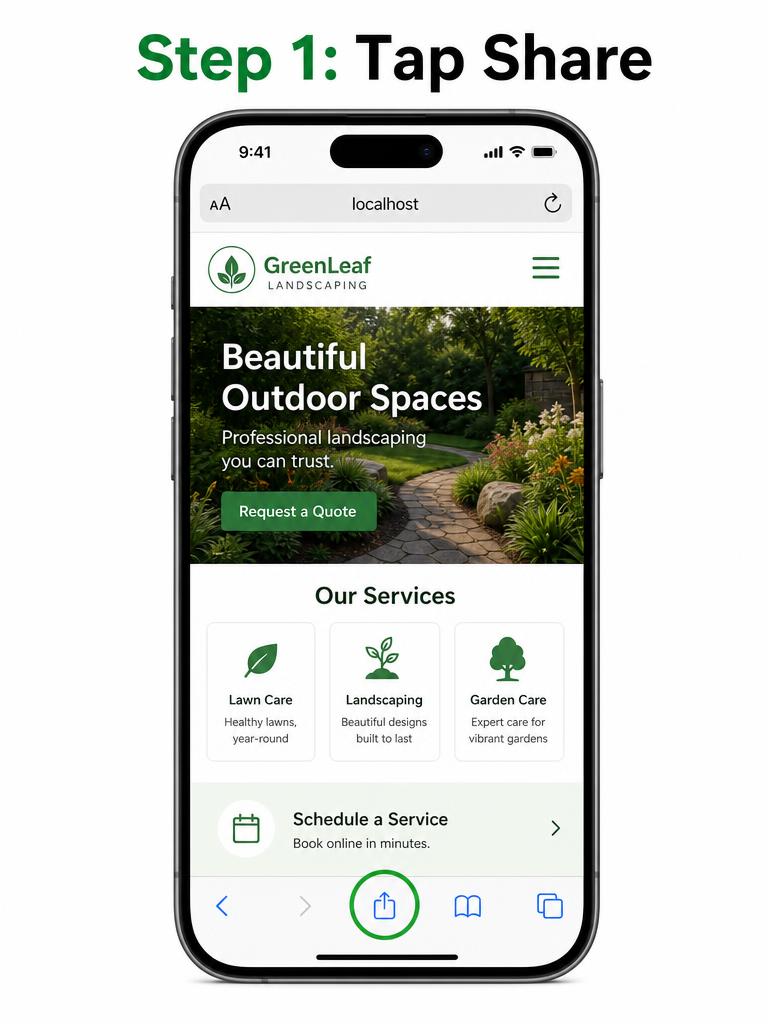
Tap the Share button
It's the square with an arrow pointing up, in the bar at the bottom of the screen. If you don't see the bar, scroll up slightly and it reappears.
- 3
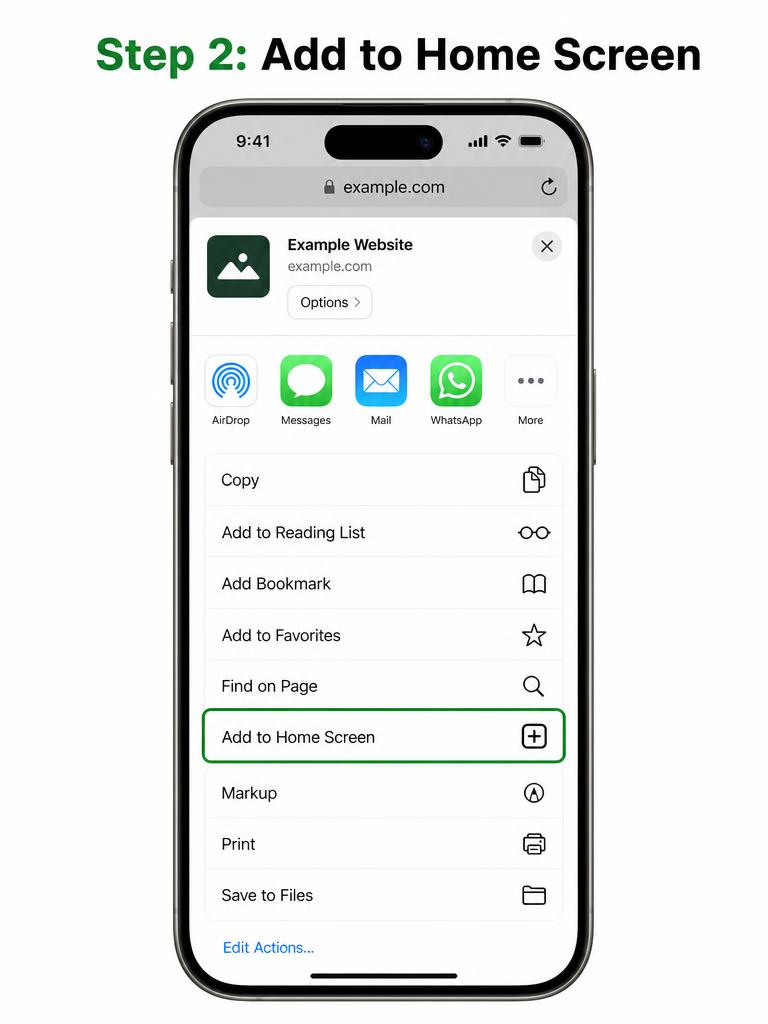
Choose "Add to Home Screen"
Scroll down the grey list of options until you see "Add to Home Screen" with a plus-in-a-square icon, then tap it.
- 4
Tap "Add" in the top right
You can shorten the name first if you like. Tap Add and the icon lands on your home screen like any other app.
- 5
Open it from the icon from now on
Launched from the icon, it fills the whole screen with no address bar — and that's also what lets it send you notifications.
Android (Chrome)
Also works in Samsung Internet, Edge and Brave.
- 1
Open the app link in Chrome
Tap the link we sent you, or type the web address into Chrome. Samsung Internet works too — the menu wording is nearly identical.
- 2
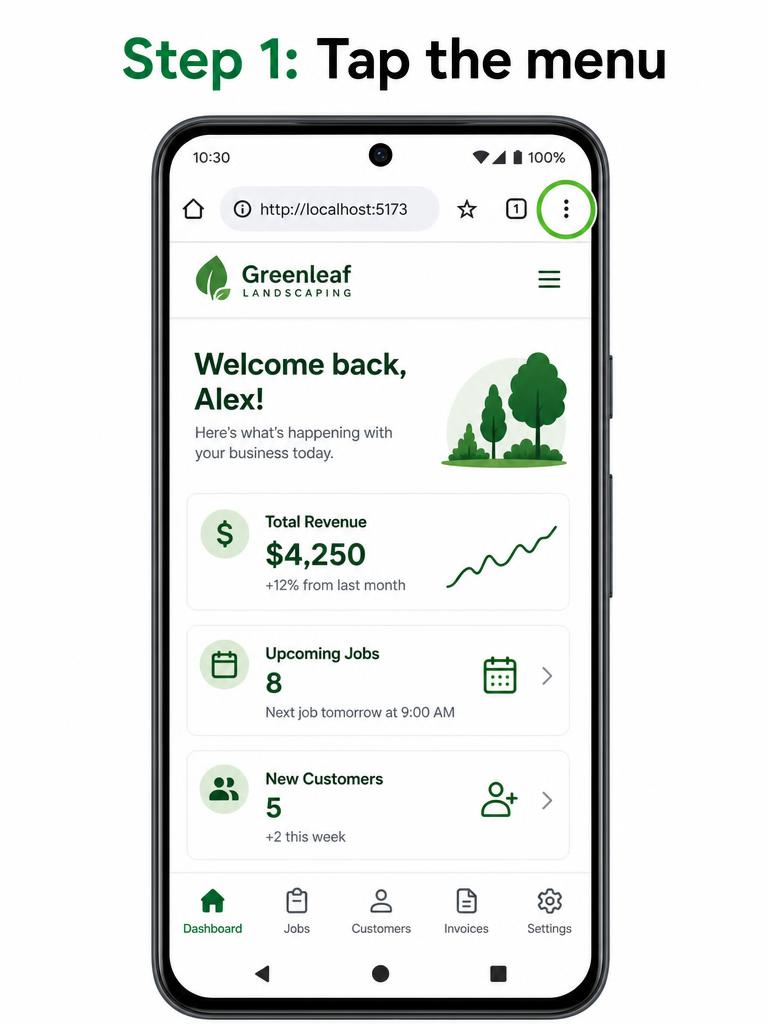
Tap the three-dot menu
It's at the top right of Chrome, just to the right of the address bar.
- 3
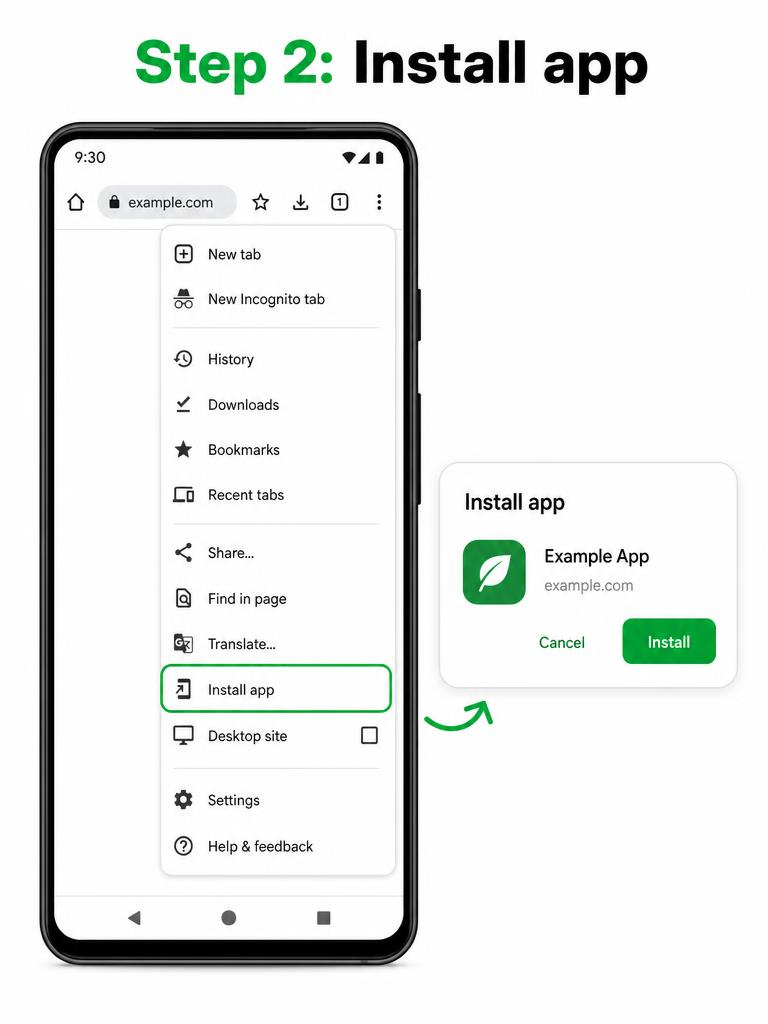
Tap "Install app" or "Add to Home screen"
Chrome shows one or the other depending on your version. Either one does the same thing.
- 4
Confirm with "Install" or "Add"
A small box appears with the app name and icon. Confirm it and the icon appears on your home screen and in your app drawer.
- 5
Say yes to notifications
Open the app from the icon and tap Allow when it asks about notifications, so you get specials and updates.
If something doesn't look right
I don't see "Add to Home Screen" on my iPhone
You're probably in Chrome or in a browser inside Facebook or Instagram. Copy the link, paste it into Safari and try again.
My Android menu says "Add to Home screen" instead of "Install app"
That's the same feature with older wording. Tap it and confirm — you'll get the same icon.
I said "no" to notifications by mistake
Open your phone's Settings, find Notifications, choose the app by name and switch notifications back on. On iPhone the app must be opened from the home screen icon for notifications to work.
How do I know it worked?
The icon sits on your home screen, and when you open it there's no address bar across the top — it looks and behaves like any other app.
Want an app your customers can add?
We build it, brand it and hand you a link and a QR code your customers can install in seconds. Questions first? Call 973-220-6859.